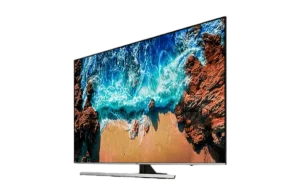
Step 1 – Download the Correct App for Your TV
The app name and publisher details differ between Samsung and LG. Follow the instructions for your TV below.
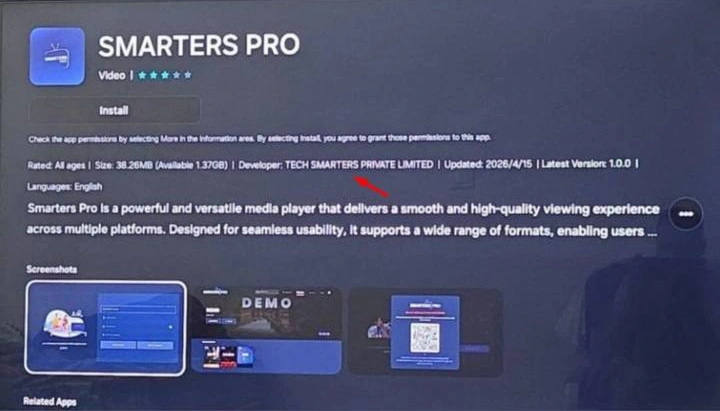
Samsung TVs – Smarters Pro
View the official Samsung app listing
- Open Apps on your Samsung Smart TV.
- Search for “Smarters Pro”.
- Check that the developer is TECH SMARTERS PRIVATE LIMITED, as shown in the photo below.
- Select Install, then open the app.
LG TVs – Smarters Pro Original
View the official LG app listing
- Open the LG Content Store / Apps on your LG Smart TV.
- Search for “Smarters Pro Original”.
- Check that the seller is WHMCS Smarters, as shown in the photo below.
- Select Install, then open the app.
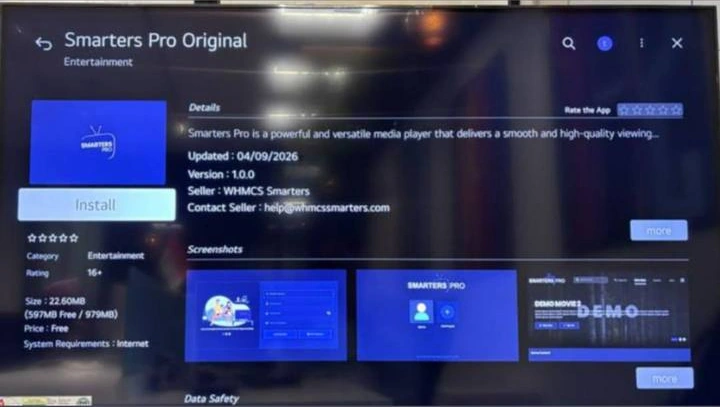
Important: Match both the app name and the developer or seller shown above, not just the logo. App availability may vary by country and TV model. Tap either photo to view it full size.
Step 2 – Open the Login Form
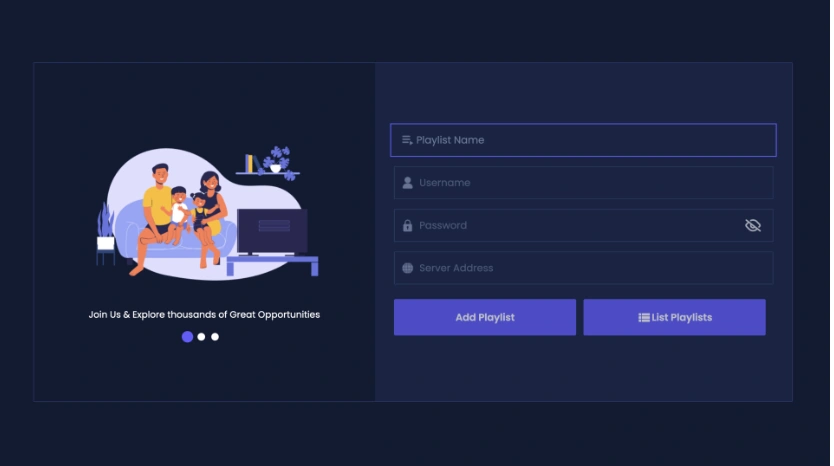
Open the app and use the login form shown below. If you are asked to choose a login method first, select the option for a username, password and server address (often called Xtream Codes API).
Step 3 – Enter Your Hakuna TV Details
- Playlist Name: Enter Hakuna TV.
- Username: Enter the username we emailed you.
- Password: Enter the password we emailed you.
- Server Address: Enter the full server URL we emailed you.
- Select Add Playlist to save your details, then wait for the app to load your subscription data.
Enter all details exactly as provided, without extra spaces. The new screen uses Add Playlist, not Add User. You can use List Playlists to view your saved playlists.
You are now ready to start watching with Hakuna TV!
Step 1 – Install IB Player Pro
- Open the app store on your Samsung or LG Smart TV.
- Search for “IB Player Pro” (formerly called IBO Pro), then install and open the app.

Step 2 – Find Your Device Details
- On the first screen, locate the MAC Address and Device Key.
- Keep this screen open or write both details down exactly as shown.
Step 3 – Log In to the Playlist Manager
- On a phone, tablet or computer, open IB Player Pro – Manage Playlists.
- Enter the MAC Address and Device Key displayed by the app, then select LOGIN.
Step 4 – Add Your Hakuna TV Playlist
- Select the option to add a new playlist.
- For Playlist Name, enter Hakuna TV.
- For the playlist or M3U URL, paste the complete M3U link sent to you by Hakuna TV.
- Save or add the playlist.
Step 5 – Load the Playlist on Your TV
- Return to your TV and completely close and reopen IB Player Pro.
- Select Hakuna TV and allow the channels, movies, series and TV guide to finish loading.
Important: Copy the M3U link exactly as received, without adding spaces or changing any characters.
1. Open the App Store on your device and search for Vu Player Pro.

2. Within the Vu Player Pro app, go to the settings or profile section, You will find your Mac Address and Device Code displayed within the app.
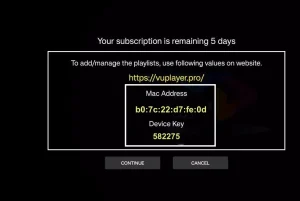
3. Now go to the website: https://vuplayer.pro/login
and enter the Mac address (Device ID) and the device key (Device Key).
4. Velg M3u-koblingen eller Xtream-koden for å laste opp dataene dine. Dataene vil bli sendt til din e-postadresse.
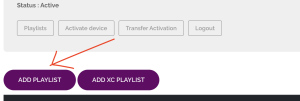
5. Start appen på nytt og nyt!
Step 1 – Install SETIPTV
- Open the app store on your Samsung or LG Smart TV.
- Search for “SETIPTV”, then install and open the app.

Step 2 – Find Your Device MAC Address
- When SETIPTV opens, note the Device MAC shown on the screen.
- Keep the app open while you complete the next steps on a phone, tablet or computer.
Step 3 – Open the SETIPTV Playlist Manager
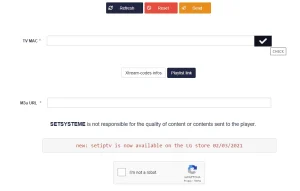
- Visit https://setsysteme.com/set.app.
- Select the M3U Link tab.
Step 4 – Enter Your Hakuna TV Playlist
- Device MAC: enter the MAC address displayed in the SETIPTV app.
- Playlist name: enter Hakuna TV.
- Playlist URL: paste the complete M3U link sent to you by Hakuna TV.
- Make sure the playlist is marked Selected, then click Submit.
Step 5 – Load the Playlist on Your TV
- Return to your TV and completely close and reopen SETIPTV.
- Select Hakuna TV and wait for the channels and programme guide to load.
Important: Copy the M3U link exactly as received, without adding spaces or changing any characters.

Televizo is a freemium app, meaning you can use it for free. However, the free version does include ads and has some limited functionalities. But don’t worry, even with the free version, you can still enjoy watching content and casting to your TV with Chromecast.
P.S. The premium version of the app costs only 10 euros for a lifetime activation.
1. Open your Play Store and search for Televizo – IPTV player.

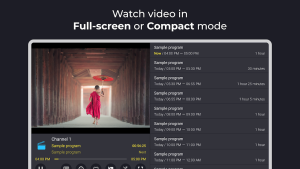
Sparkle TV Player is a freemium IPTV player for Android TV, Android phones and Android boxes.
Step 1 – Install Sparkle TV Player
- Open Google Play and search for “Sparkle TV Player”, or use the official Google Play listing.
- Install and open the app.

Step 2 – Add a New Source
- Select the option to add a new source or playlist.
- Choose Xtream Codes (recommended).
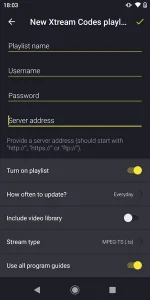
Step 3 – Enter Your Hakuna TV Details
- Playlist name: enter Hakuna TV.
- Server/Portal URL: enter the URL sent to you by Hakuna TV.
- Username: enter the username sent to you.
- Password: enter the password sent to you.
Step 4 – Connect
- Select Add, Save or Connect.
- Wait for the channels, movies, series and TV guide to finish loading, then select Hakuna TV.
Alternative: If you prefer the playlist method, choose M3U Playlist and paste the complete M3U link sent by Hakuna TV.
1. Åpne Play Store og søk etter TiviMate IPTV Player.

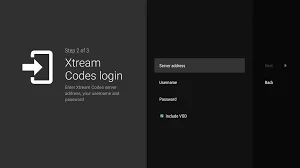
XCIPTV PLAYER is a freemium IPTV player for Android TV, Android phones, tablets and Android boxes.
Step 1 – Install XCIPTV PLAYER
- Open Google Play and search for “XCIPTV PLAYER”, or use the official Google Play listing.
- Install and open the app.

Step 2 – Choose Your Login Method
- Select Xtream Codes API or Login with Xtream Codes (recommended).
Step 3 – Enter Your Hakuna TV Details
- Playlist name: enter Hakuna TV.
- Server/Portal URL: enter the URL sent to you by Hakuna TV.
- Username: enter the username sent to you.
- Password: enter the password sent to you.
Step 4 – Sign In
- Select Sign In, Login or Add User.
- Allow the channels, movies, series and TV guide to finish loading.
- Select Hakuna TV and enjoy streaming.
Alternative: If the app asks for an M3U URL, paste the complete M3U link sent to you by Hakuna TV.

Before installing an app:
- Confirm that your Hisense television uses VIDAA. Some Hisense models use Android TV or Google TV instead.
- App availability may vary by country, region and TV model.
- Search your TV’s VIDAA App Store for the exact app name before starting setup.
- Any player app fee or activation charge is separate from your Hakuna TV subscription.

Vu Player Pro is a paid player and does not include channels.
- Open the VIDAA App Store, search for Vu Player Pro, then install and launch it.
- Write down the MAC address and device key displayed by the app.
- On a phone or computer, open vuplayer.pro and open the playlist manager.
- Enter the MAC address and device key, then add a new playlist.
- Use playlist name Hakuna TV and paste the complete M3U URL sent by Hakuna TV.
- Save the playlist, restart Vu Player Pro on the TV, and wait for all content to load.

Hot IPTV is an alternative M3U player for Hisense VIDAA TVs.
- Open the VIDAA App Store, search for Hot IPTV, then install and launch it.
- Keep the activation information displayed by the app on screen.
- Using a phone or computer, open the playlist or activation page shown inside Hot IPTV.
- Enter the requested device details, use playlist name Hakuna TV, and paste the complete M3U URL sent by Hakuna TV.
- Save the playlist, restart Hot IPTV on the TV, and wait for channels and the TV guide to load.
View Hot IPTV in the official VIDAA App Store
If the activation page shown inside the app differs from these steps, follow the current on-screen instructions.
SmartOne IPTV is a freemium player for Hisense TVs running VIDAA.
- Open the VIDAA App Store, search for SmartOne IPTV, then install and launch it.
- Write down the TV MAC address displayed by the app.
- On a phone or computer, open smartone-iptv.com and choose the playlist upload or generate-link option.
- Enter the TV MAC address. Choose Xtream Server Info and use account name Hakuna TV, then enter the server address, port, username and password sent by Hakuna TV. You can also use the complete M3U URL when needed.
- Save the playlist, then reload or restart SmartOne IPTV on the TV and wait for Live TV, Movies, Series and EPG to finish loading.
View SmartOne IPTV in the official VIDAA App Store
SmartOne IPTV is only a player and does not include channels. Any app purchase is separate from the Hakuna TV subscription.

The app itself is free to download and includes a wide array of playback and management features like global search, EPG, catch-up, picture-in-picture, downloads, VPN, parental lock, advanced playlist editing, and more — all without charge
1- Download the “UHF IPTV” app from the APP store.

2- Choose to connect with XTREAM codes API.
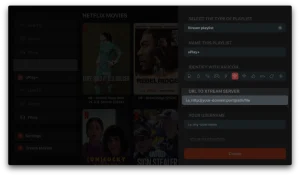
3- Enter your login details (Username, Password and URL) and press OK to connect.
Wait for the app to load the data, and enjoy streaming!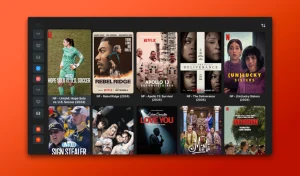
1- Download the IPTV Smarters Lite app from the APP store, make sure it’s the LITE version not Pro.

2- Velg å koble til XTREAM codes API for å unngå å gå inn i alle m3u-filer.
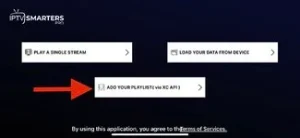
3- Skriv inn påloggingsdetaljene dine og trykk LEGG TIL BRUKER for å koble til.
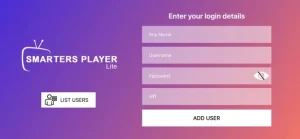
1. Open the App Store on your device and search for Hot Player.

2. Within the Hot Player app, go to the settings or profile section, You will find your Mac Address displayed within the app.
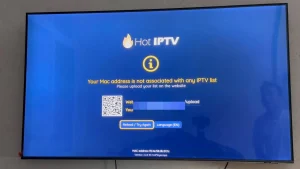
3. Now go to the website: https://hotplayer.app/upload
And enter the Mac address (Device ID).
4. Select the M3u link to upload your data. The data will be sent to your email address.
5. Start appen på nytt og nyt!
1. Open the App Store on your device and search for Vu Player Pro.
2. Within the Vu Player Pro app, go to the settings or profile section, You will find your Mac Address and Device Code displayed within the app.
3. Now go to the website: https://vuplayer.pro/login
and enter the Mac address (Device ID) and the device key (Device Key).
4. Velg M3u-koblingen eller Xtream-koden for å laste opp dataene dine. Dataene vil bli sendt til din e-postadresse.
5. Start appen på nytt og nyt!
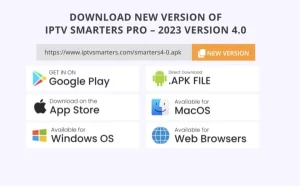
2- Avhengig av din PC (Mac, Windows, etc.), klikk "Last ned" og vent til nedlastingen er fullført. Installer deretter appen.
1. Open the App Store on your device and search for Hot Player, or download directly from app website: https://hotplayer.app/
2. Within the Hot Player app, go to the settings or profile section, You will find your Mac Address Code displayed within the app.
3. Now go to the website: https://hotplayer.app/upload
and enter the Mac address (Device ID).
4. Select the M3u link. The data will be sent to your email address.
5. Start appen på nytt og nyt!
1. Open the App Store on your device and search for Vu Player Pro, or download directly from the Vu Player pro website.
2. Within the Vu Player Pro app, go to the settings or profile section, You will find your Mac Address and Device Code displayed within the app.
3. Now go to the website: https://vuplayer.pro/login
and enter the Mac address (Device ID) and the device key (Device Key).
4. Velg M3u-koblingen eller Xtream-koden for å laste opp dataene dine. Dataene vil bli sendt til din e-postadresse.
5. Start appen på nytt og nyt!
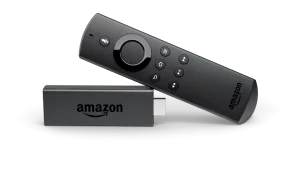
2. Klikk på Søk > Søk Alternativ på FireStick-startskjermen
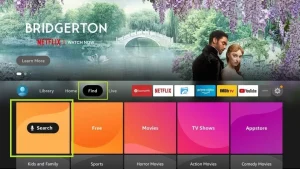 3. Skriv inn navnet på applikasjonen (dette er Downloader)
click on the Downloader option when displayed in search results
Choose the one Downloader ikonet på følgende skjerm og last ned og installer appen.
3. Skriv inn navnet på applikasjonen (dette er Downloader)
click on the Downloader option when displayed in search results
Choose the one Downloader ikonet på følgende skjerm og last ned og installer appen.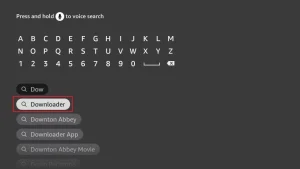 4. After installing the downloader app, return to the FireStick home screen
Click in the menu bar Innstillinger.
4. After installing the downloader app, return to the FireStick home screen
Click in the menu bar Innstillinger.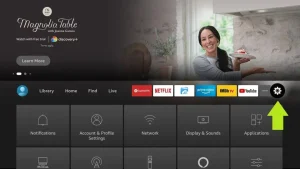 5. Velg alternativet i Innstillinger My Fire TV.
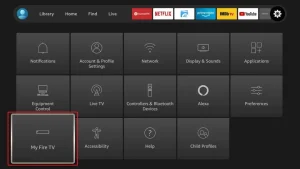 6. Når følgende alternativer vises på neste skjermbilde, klikker du Utviklermuligheter
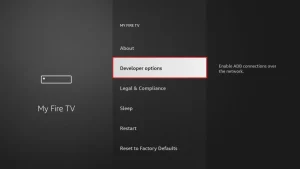 7. klikk på Installer fra ukjente applikasjoner.
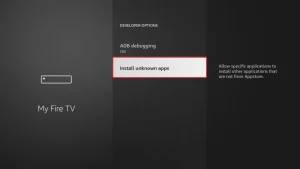 8. klikk på Downloader for å endre status til ON
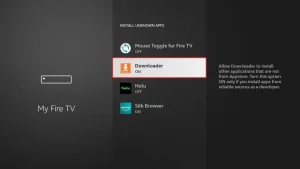 Du har nå konfigurert FireStick-innstillingene slik at installasjon av IPTV smartere og andre tredjepartsapper er mulig. Følg trinnene nedenfor:9. You can now see Downloader app!
When you first launch this application, you will see a series of prompts. Ignore these until you see the following screen
In this screen you need to click on the URL text box on the right side (make sure Home page alternativet er valgt i venstremenyen) der det står ‘http://’
Du har nå konfigurert FireStick-innstillingene slik at installasjon av IPTV smartere og andre tredjepartsapper er mulig. Følg trinnene nedenfor:9. You can now see Downloader app!
When you first launch this application, you will see a series of prompts. Ignore these until you see the following screen
In this screen you need to click on the URL text box on the right side (make sure Home page alternativet er valgt i venstremenyen) der det står ‘http://’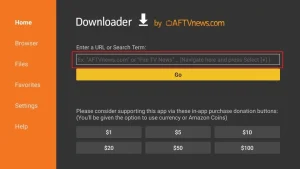 10. In this window, enter the following code: 2820112
klikk på GO11. Vent et minutt eller to til IPTV Smarter laster ned på FireStick.
10. In this window, enter the following code: 2820112
klikk på GO11. Vent et minutt eller to til IPTV Smarter laster ned på FireStick.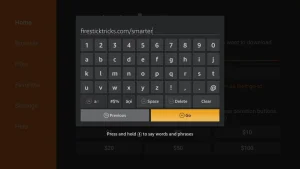 12. When the download is complete, the downloader app will run the APK file and the installation will begin.
click on Install
12. When the download is complete, the downloader app will run the APK file and the installation will begin.
click on Install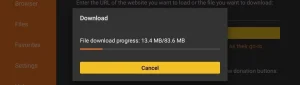 13. Vent til installasjonen er fullført.
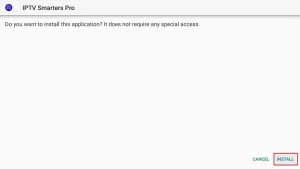 14. Installasjonen er fullført med dette App installed Report
You can now click OPEN and get started with IPTV Smarters
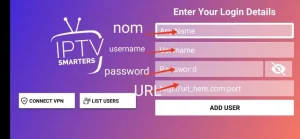
I recommend choosing DONE så du kan først slette APK-filen for å spare lagringsplass på FireStick.15. Choose to connect with XTREAM codes API to avoid entering all m3u files.16- Skriv inn påloggingsinformasjonen du har sendt via e-post og trykk LEGG TIL BRUKER for å koble til.
14. Installasjonen er fullført med dette App installed Report
You can now click OPEN and get started with IPTV Smarters
I recommend choosing DONE så du kan først slette APK-filen for å spare lagringsplass på FireStick.15. Choose to connect with XTREAM codes API to avoid entering all m3u files.16- Skriv inn påloggingsinformasjonen du har sendt via e-post og trykk LEGG TIL BRUKER for å koble til.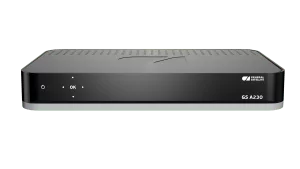
1. Gå til baksiden av din Formuler Z der Mac-ID-en er angitt.
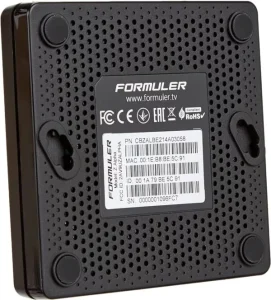
2. Sørg for at du gir oss Mac-IDen når du bestiller pakken. Mac ID starter vanligvis med 00:1A...
Du finner den også på MyTvOnline-appen.
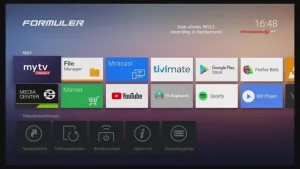
3. Når vi mottar bestillingen din med Mac-ID, sender vi deg portalens URL. Sørg for å skrive inn portalens URL i MyTvOnline-appen (ingen brukernavn eller passord kreves).
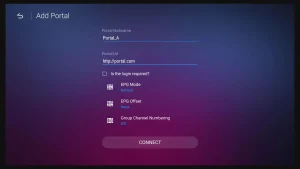
1. Gå til baksiden av Mag-en hvor Mac-ID (eller Mac-adresse) er angitt.
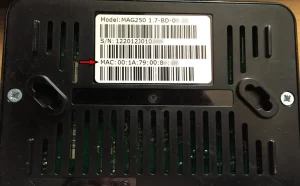
2. Sørg for at du gir oss Mac-IDen når du bestiller pakken. Mac-ID-en starter vanligvis med 00:1A….
3. Gå til Innstillinger, deretter Systeminnstillinger, deretter Servere og deretter Portal.
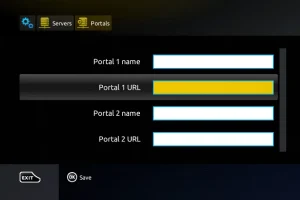
4. Skriv inn portal-URLen som vi sendte deg på e-post.
Etter å ha fullført alle trinnene ovenfor, trykk "EXIT" på fjernkontrollen to ganger for å starte porten på nytt. Nå er alt klart for å se direkte TV...