Step 1 – Download the Correct App
Go to your Samsung or LG App Store.
Search for “IPTV Smarters Pro”.

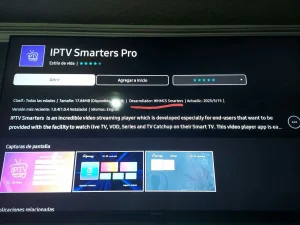
⚠️ Important: There are many fake versions of this app.
Make sure the Developer is WHMCS Smarters (see screenshot below).
Step 2 – Choose Login Method
When the app opens, select XTREAM Codes API (recommended).
This avoids entering long m3u links manually.
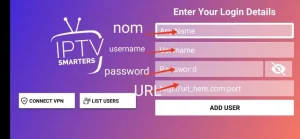
Step 3 – Enter Your Details
Fill in the login details we emailed you:
Playlist Name → You can type any name, e.g., Hakuna TV
Username
Password
Server/Portal URL
Press ADD USER to connect.
✅ You are now ready to start watching Live TV, Movies, and Series with Hakuna TV!
1. Open the App Store on your device and search for Vu Player Pro.

2. Within the Vu Player Pro app, go to the settings or profile section, You will find your Mac Address and Device Code displayed within the app.
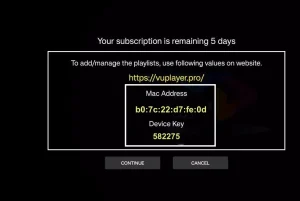
3. Now go to the website: https://vuplayer.pro/login
and enter the Mac address (Device ID) and the device key (Device Key).
4. Velg M3u-koblingen eller Xtream-koden for å laste opp dataene dine. Dataene vil bli sendt til din e-postadresse.
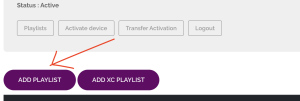
5. Start appen på nytt og nyt!
1. Open the App Store on your TV and search for SmartOne.
2. Within the SmartOne app, go to the settings or profile section, You will find your Mac Address displayed within the app.
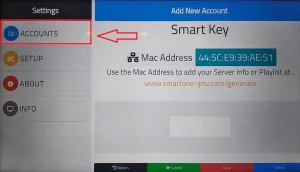
3. Now go to the website: https://smartone-iptv.com/plugin/smart_one/main_generate
And enter the Mac address and any playlist name.
4. Select the M3u link to upload your data. The data will be sent to your email address.
5. Start appen på nytt og nyt!
1. Installer Set TV fra App Store på Smart TV.

2. Open the IPTV Player app and put a checkmark under the MAC address displayed on the screen.
3. Gå til aktiveringssiden for SetIPTV og skriv inn MAC-adressen din.
https://setsysteme.com/set.app
4. Skriv inn MAC-adressen og klikk på pundikonet for å bekrefte.
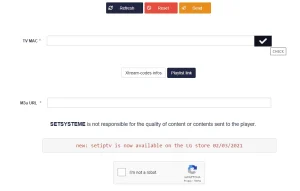
5. Etter verifisering, skriv inn M3U URL-adressen knyttet til IPTV-leverandøren din.
6. Klikk deretter på Send for å laste ned M3U URL til enheten din.
7. Start appen på nytt og strøm videoer fra IPTV-leverandøren din.

MYTVOnline+ is a freemium app, meaning you can use it for free. However, the free version does include ads and has some limited functionalities.
Open your Play Store and search for MYTVOnline+ IPTV Player

Step 1 — Open Settings
Open the app MYTVOnline+
Go to Settings
Tap Content Sources
(You will see a screen like “Settings” with “Content Sources” in the list.)
Step 2 — Add your login (Xtream)
Inside Content Sources, tap the + (top right)
Tap Add Portal (MAC & Xtream)
✅ This is the correct option for Xtream login.
Step 3 — Fill in the boxes
You will now see a page called “Add Portal (MAC & Xtream)”.
Please fill it like this:
✅ Portal Nickname
Type any name you like, for example:
My TV
hakuna TV
IPTV
✅ Portal URL
Enter the Portal /Server URL we sent you.
Example format:
http://YOURDOMAIN.com
✅ Login required?
Keep it ON (green) ✅
✅ User ID
Enter the User ID / Username we sent you.
✅ Password
Enter the Password we sent you.
EPG Offset
Leave it as None (do not change)
Step 4 — Connect
Tap the Connect button at the bottom
Wait 10–60 seconds (it loads channels)
After it finishes, you will see:
Live TV
Movies / Series
9xtream is a freemium app. It comes with ads, but you can remove them for €5-10 per year.
1. Open your Play Store and search for 9Xtream.

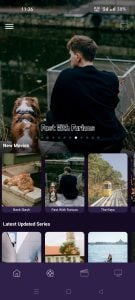
1. Åpne Play Store og søk etter TiviMate IPTV Player.

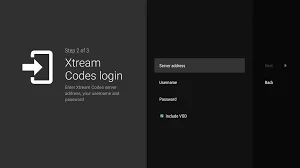
1. Open the Play Store on your device and search for SmartOne.
2. Within the SmartOne app, go to the settings or profile section, You will find your Mac Address displayed within the app.
3. Now go to the website: https://smartone-iptv.com/plugin/smart_one/main_generate
And enter the Mac address and any playlist name.
4. Select the M3u link to upload your data. The data will be sent to your email address.
5. Start appen på nytt og nyt!

MYTVOnline+ is a freemium app, meaning you can use it for free. However, the free version does include ads and has some limited functionalities.
P.S.: The app is available on iPhone only. For macOS (MacBooks) or some iPads, see the next app suggestions.
Open your App Store and search for MYTVOnline+ IPTV Player
Step 1 — Open Settings
Open the app MYTVOnline+
Go to Settings
Tap Content Sources
(You will see a screen like “Settings” with “Content Sources” in the list.)
Step 2 — Add your login (Xtream)
Inside Content Sources, tap the + (top right)
Tap Add Portal (MAC & Xtream)
✅ This is the correct option for Xtream login.
Step 3 — Fill in the boxes
You will now see a page called “Add Portal (MAC & Xtream)”.
Please fill it like this:
✅ Portal Nickname
Type any name you like, for example:
My TV
hakuna TV
IPTV
✅ Portal URL
Enter the Portal /Server URL we sent you.
Example format:
http://YOURDOMAIN.com
✅ Login required?
Keep it ON (green) ✅
✅ User ID
Enter the User ID / Username we sent you.
✅ Password
Enter the Password we sent you.
EPG Offset
Leave it as None (do not change)
Step 4 — Connect
Tap the Connect button at the bottom
Wait 10–60 seconds (it loads channels)
After it finishes, you will see:
Live TV
Movies / Series
The app itself is free to download and includes a wide array of playback and management features like global search, EPG, catch-up, picture-in-picture, downloads, VPN, parental lock, advanced playlist editing, and more — all without charge
1- Download the “UHF IPTV” app from the APP store.

2- Choose to connect with XTREAM codes API.
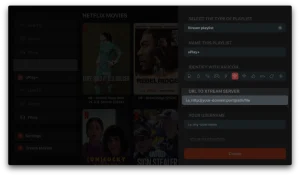
3- Enter your login details (Username, Password and URL) and press OK to connect.
Wait for the app to load the data, and enjoy streaming!
1. Open the App Store on your device and search for Hot Player.

2. Within the Hot Player app, go to the settings or profile section, You will find your Mac Address displayed within the app.
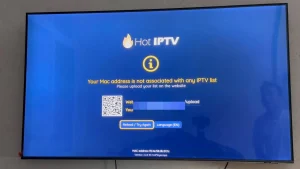
3. Now go to the website: https://hotplayer.app/upload
And enter the Mac address (Device ID).
4. Select the M3u link to upload your data. The data will be sent to your email address.
5. Start appen på nytt og nyt!
1. Open the App Store on your device and search for Vu Player Pro.
2. Within the Vu Player Pro app, go to the settings or profile section, You will find your Mac Address and Device Code displayed within the app.
3. Now go to the website: https://vuplayer.pro/login
and enter the Mac address (Device ID) and the device key (Device Key).
4. Velg M3u-koblingen eller Xtream-koden for å laste opp dataene dine. Dataene vil bli sendt til din e-postadresse.
5. Start appen på nytt og nyt!

1- Åpne nettleseren Chrome, Firefox eller Apple Safari og gå til denne lenken: https://www.iptvsmarters.com/#downloads
2- Avhengig av din PC (Mac, Windows, etc.), klikk "Last ned" og vent til nedlastingen er fullført. Installer deretter appen.
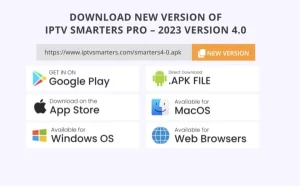
3- Skriv inn påloggingsinformasjonen du har sendt via e-post og trykk LEGG TIL BRUKER for å koble til.
1- Åpne nettleseren Chrome, Firefox eller Apple Safari og gå til denne lenken: https://iptvstreamplayer.com/
2- Avhengig av din PC (Mac, Windows, etc.), klikk "Last ned" og vent til nedlastingen er fullført. Installer deretter appen.
3- Åpne nå appen og klikk på "Logg på med en ny brukerkonto".
4- Skriv inn påloggingsdetaljene dine og trykk Logg på for å koble til.
1. Open the App Store on your device and search for Hot Player, or download directly from app website: https://hotplayer.app/
2. Within the Hot Player app, go to the settings or profile section, You will find your Mac Address Code displayed within the app.
3. Now go to the website: https://hotplayer.app/upload
and enter the Mac address (Device ID).
4. Select the M3u link. The data will be sent to your email address.
5. Start appen på nytt og nyt!
1. Open the App Store on your device and search for Vu Player Pro, or download directly from the Vu Player pro website.
2. Within the Vu Player Pro app, go to the settings or profile section, You will find your Mac Address and Device Code displayed within the app.
3. Now go to the website: https://vuplayer.pro/login
and enter the Mac address (Device ID) and the device key (Device Key).
4. Velg M3u-koblingen eller Xtream-koden for å laste opp dataene dine. Dataene vil bli sendt til din e-postadresse.
5. Start appen på nytt og nyt!
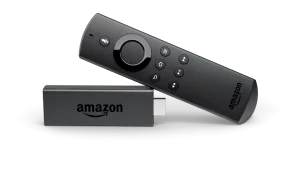
1. Vi installerer først Downloader app
Denne appen hjelper deg med å laste ned IPTV Smarter på FireStick (fordi nettlesernedlastinger ikke er tillatt).
2. Klikk på Søk > Søk Alternativ på FireStick-startskjermen
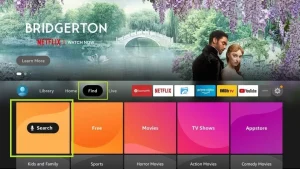
3. Skriv inn navnet på applikasjonen (dette er Downloader)
Klikk på Downloader alternativet når det vises i søkeresultatene
Velg den ene Downloader ikonet på følgende skjerm og last ned og installer appen.
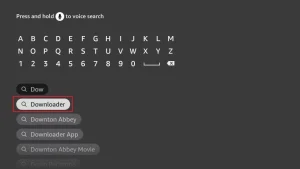
4. Etter å ha installert nedlastningsappen, gå tilbake til FireStick-startskjermen
Klikk i menylinjen Innstillinger.
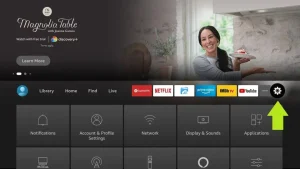
5. Velg alternativet i Innstillinger My Fire TV.
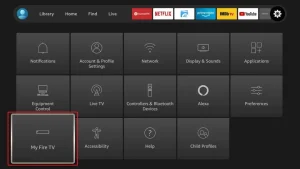
6. Når følgende alternativer vises på neste skjermbilde, klikker du Utviklermuligheter
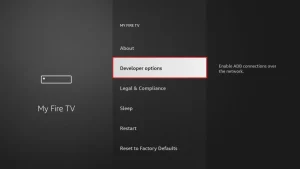
7. klikk på Installer fra ukjente applikasjoner.
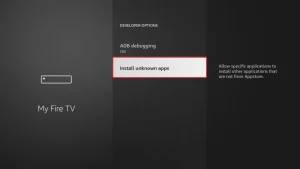
8. klikk på Downloader for å endre status til ON
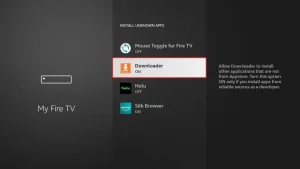
Du har nå konfigurert FireStick-innstillingene slik at installasjon av IPTV smartere og andre tredjepartsapper er mulig. Følg trinnene nedenfor:
9. You can now see Downloader app!
Når du først starter denne applikasjonen, vil du se en rekke meldinger. Ignorer disse til du ser følgende skjermbilde
På denne skjermen må du klikke på URL-tekstboksen på høyre side (sørg for at Home page alternativet er valgt i venstremenyen) der det står ‘http://’
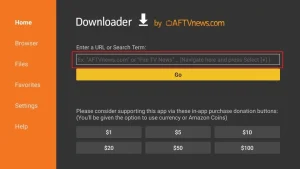
10. In this window, enter the following code: 6468112
klikk på GO
11. Vent et minutt eller to til IPTV Smarter laster ned på FireStick.
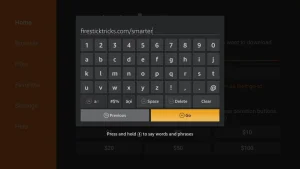
12. Når nedlastingen er fullført, vil nedlastingsappen kjøre APK-filen og installasjonen starter.
klikk på Install
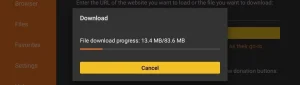
13. Vent til installasjonen er fullført.
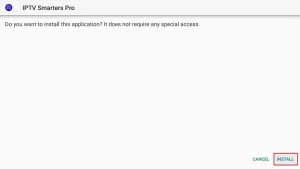
14. Installasjonen er fullført med dette App installed Report
Du kan nå klikke OPEN og komme i gang med IPTV Smarters
Jeg anbefaler å velge DONE så du kan først slette APK-filen for å spare lagringsplass på FireStick.
15. Choose to connect with XTREAM codes API to avoid entering all m3u files.
16- Skriv inn påloggingsinformasjonen du har sendt via e-post og trykk LEGG TIL BRUKER for å koble til.
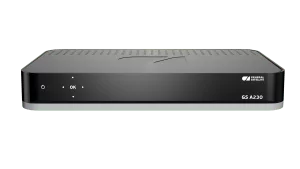
1. Gå til baksiden av din Formuler Z der Mac-ID-en er angitt.
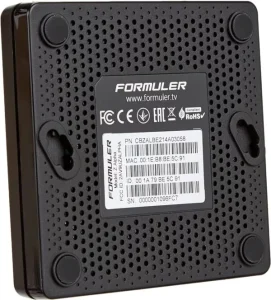
2. Sørg for at du gir oss Mac-IDen når du bestiller pakken. Mac ID starter vanligvis med 00:1A...
Du finner den også på MyTvOnline-appen.
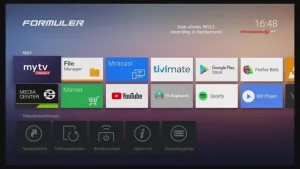
3. Når vi mottar bestillingen din med Mac-ID, sender vi deg portalens URL. Sørg for å skrive inn portalens URL i MyTvOnline-appen (ingen brukernavn eller passord kreves).
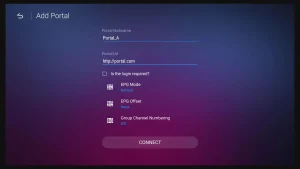
1. Gå til baksiden av Mag-en hvor Mac-ID (eller Mac-adresse) er angitt.
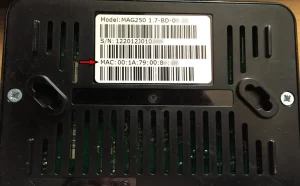
2. Sørg for at du gir oss Mac-IDen når du bestiller pakken. Mac-ID-en starter vanligvis med 00:1A….
3. Gå til Innstillinger, deretter Systeminnstillinger, deretter Servere og deretter Portal.
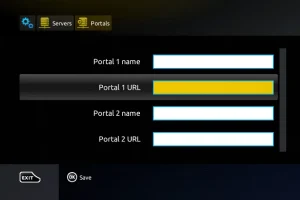
4. Skriv inn portal-URLen som vi sendte deg på e-post.
Etter å ha fullført alle trinnene ovenfor, trykk "EXIT" på fjernkontrollen to ganger for å starte porten på nytt. Nå er alt klart for å se direkte TV...

 Norsk nynorsk
  English
  Deutsch
  Nederlands
  Dansk
Dansk  Svenska
  Polski
  Türkçe
  Suomi
Suomi